Mount and Unmount a Partition in Windows
Student
Search for a command to run...
Student
No comments yet. Be the first to comment.
If you've ever faced the challenge of running graphical user interface (GUI) programs within a container, fear not! While it may seem like a daunting task at first, with this comprehensive guide, we'll walk through the process using Incus Container. ...

When working with containers, managing file sharing between the host system and container can often pose a challenge. However, there is an easy-to-use solution that simplifies this process using just one line of code! This blog post will guide you on...

Incus, a manager and hypervisor for system containers (LXC) and virtual machines (QEMU), is an excellent tool for managing and orchestrating your applications and services. It is a fork of LXD by the original maintainers. I found the documentation re...

Using ble.sh and Starship. Bash by itself is pretty basic. Syntax highlighting, auto-suggestion and history matching are pretty helpful features in any shell. Users might be worried about the bloat these features bring and add delay to the startup of...

The ability to run virtual machines (VMs) and docker containers is an integral part of today’s modern computing landscape. However, issues with internet connectivity inside these environments often cause significant inconvenience for users who depend...

Open elevated Command Prompt by hitting Win+R > cmd > Ctrl+Shift+Enter > Yes.
Type in diskpart and hit Enter.
Next, enter list vol. It will list all drives and partitions.
Note the volume number of the desired partition and enter sel vol <volume number>.
Assign it a drive letter currently not in use. It can be done by entering assign letter = <letter>. If you see DiskPart assigned the drive letter or mount point, then the partition mounted successfully.
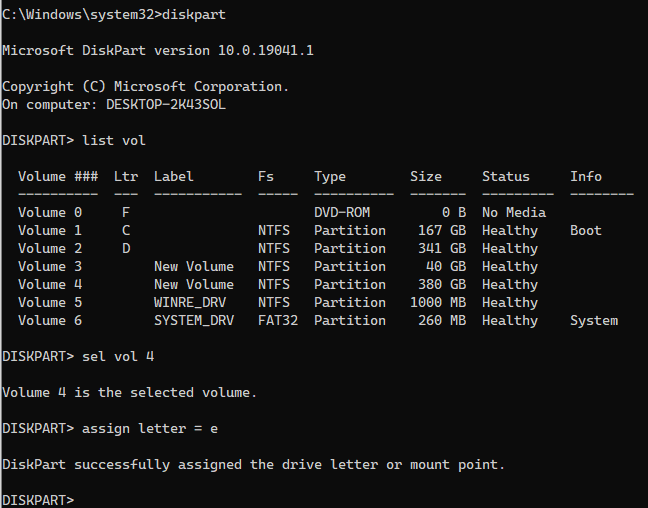
Leave diskpart by typing exit. Now you can use it as normal from File Explorer. Enter start <letter>: to open the partition in File Explorer. Do not forget the colon (:).
Enter remove letter = <letter> in diskpart. If you get DiskPart successfully removed the drive letter or mount point, then it unmounted successfully.
Enter mountvol. It will list all connected volumes with their UUID. Copy the UUID and mount it to a mount point by entering mounvol <mount point> <UUID>. Now you should be able to open it as normal from File Explorer. To do it, enter start <mount point>.
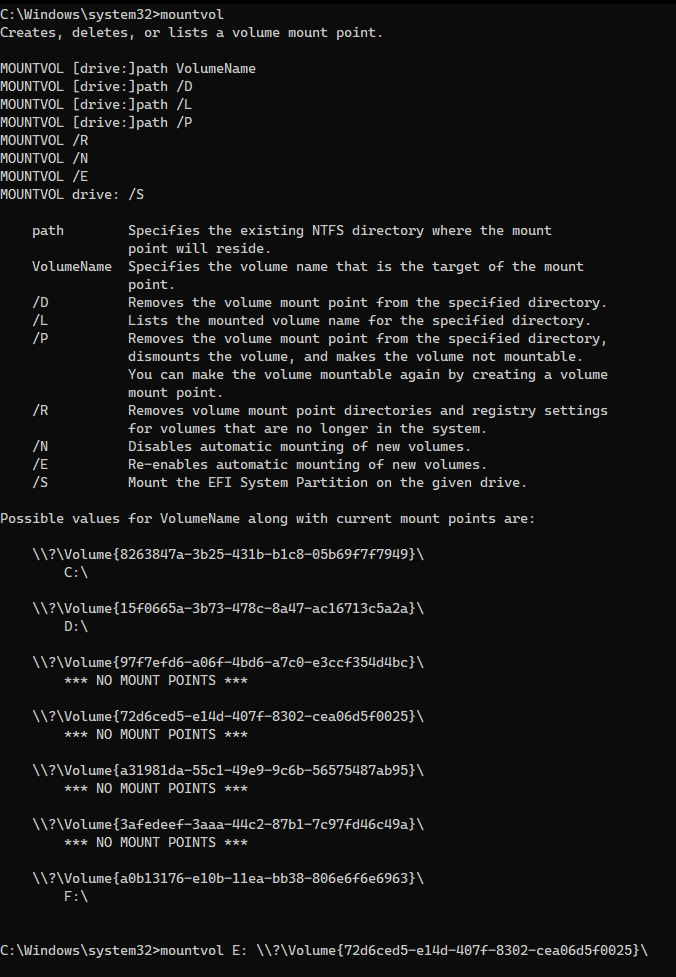
Enter mountvol <mount point> /P. It should unmount the partition.
Take care.