Open an Unlisted Removable Drive in Windows
Student
It might happen that you connected your USB stick but it did not show up in File Explorer. Maybe it is formatted with a filesystem not recognised by Windows or there might be some other reason.
In my case it was an NTFS formatted USB stick which in theory should be recognised by Windows but it did not or it refused to assign it a drive letter as was in my case. So before you think your removable drive has broken and start with a data recovery tool, follow the instructions here.
Open elevated Command Prompt
Once there, enter diskpart
The DiskPart commands help you to manage your PC's drives (disks, partitions ,volumes, or virtual hard disks).
Now type list vol and hit enter. It wil list the volumes installed in your computer.
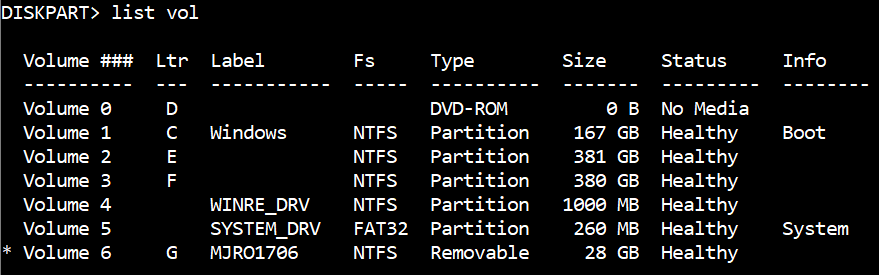
Luckily, in my vase all filesystems are recognised by Windows.
Next, enter sel vol #, where # is the volume number of the removable drive, which in my case is Volume 6. So mine looks like this:
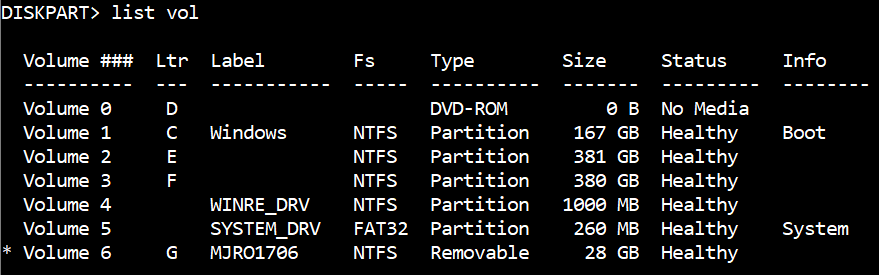
Now, it is time to assign the removable drive a drive letter so that it can show up in File Explorer. To do that, choose any letter that is not in use except A and B. They are reserved for floppy drives for historical reasons (and alsi to prevent any unwanted potential issue). So enter assign letter $, where $ is the letter. In my case, it looks like:

Enter list vol again just to be sure or alternatively you can check in File Explorer.
To exit DISKPART, type in exit and hit enter.
Now you can work normally with the removable drive. If your issue is still unfixed maybe it is time to ask in forums and get data recovery tool in action.